


The Korean brand LG arrived last year to a goal with its televisions: Renew Webos, your operating system, for free to 5 generations of televisions. Well, yesterday October 1, 2025 began the deployment of Webos 25the latest version of its operating system, on televisions of 2024 (such as LG OLED C4 that has an already updated server, for example) and will soon begin to reach more models of previous years; First those of 2023 and in a few months, it will reach televisions of 2022.
We have already talked about that LG would begin this year with system renovationsbut we did not expect that they would begin with so many models and years at once. To this system, the brand was called system Re: New of LG to keep webos updated on existing televisions. This is a change with respect to its previous policy, which forced users to buy a new TV to obtain the most recent software.
Webos 25 begins to get to LG TVs of 2024 and previous years
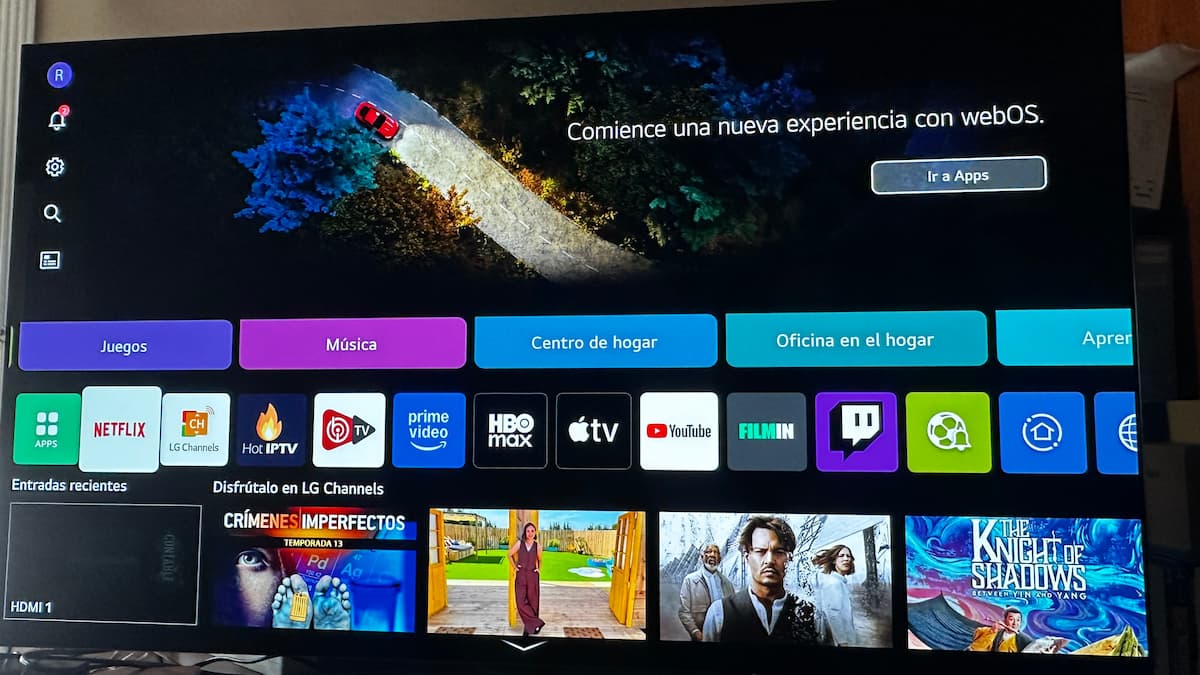
The brand states that the most recent televisions They will always have an exclusivity windowin this case of at least Half yearsomething that more or less coincides with what we have seen in this new update. They have spent about 6 months since the launch of the New range of 2025 LG TVs and lg ha fulfilled his promise to release webos 25 to older televisions.
Firmware update, for now, is available for all models LG of 2024 and 2023as well as for models OLED and LCD 8K «QNED» of 2022. OLED televisions seem to be the first to be updated, including range B. In this case, the firmware contained in the new system is the Version 33.21.85 or the newest 33.22.15 which includes some lower error corrections.
The update It is being implemented globally by phasesso it could take time to appear in the update menu of your TV. Although you can also update in another way, as you can see in the next section.
How to update your LG to Webos 25 TV
To update the system, we can do it Two ways. First let’s see if we Salta the update from the television itself; For this, go to Settings of the TV in the upper left:

Once in the “complete” settings menu, you will have to go to the Support option – Software update:

If you press or enter this option a new window will appear in which You are informed of the firmware version that your TV has and if you have an available update to apply.

If so, it will appear at the bottom that you have an available update, the new firmware version and what the download occupies. And a little below you will have the “download and install” option. If you press on it, the download will first be carried out and once the firmware will be downloaded, the update will be made. The TV warns us when the new FIRM is installed and indicates that until we turn off the TV will not end the update.
The Another way In case you do not want to wait and update the firmware manually, you just have to go to the LG support website and in the section of Manuals and softwareAfter entering our TV model, we can lower the ZIP file with the firmware. Once downloaded, We must decompress it And so you will get the final file, with EPK extension that you will use in the next step to update the TV.
Already on the same computer where we have downloaded the file, we will enter a pendrive and create a called folder LG_DTV. It is important that the folder is called exactly like that, with capital letters. Now we will copy the file EPK Inside the folder and when I finish, we will take it out and put on the TV. Then, a message of USB Update Listclick on INSTALL To start the update.

