


Many people search for trash can WhatsApp to recover conversations or permanently delete files and free up space on your cell phone. However, the application does not have a deleted items repository.
Photos, videos, voice messages, and documents automatically take up space as you use chats. These items remain stored on the device if they are not managed, which can affect its operation and performance.
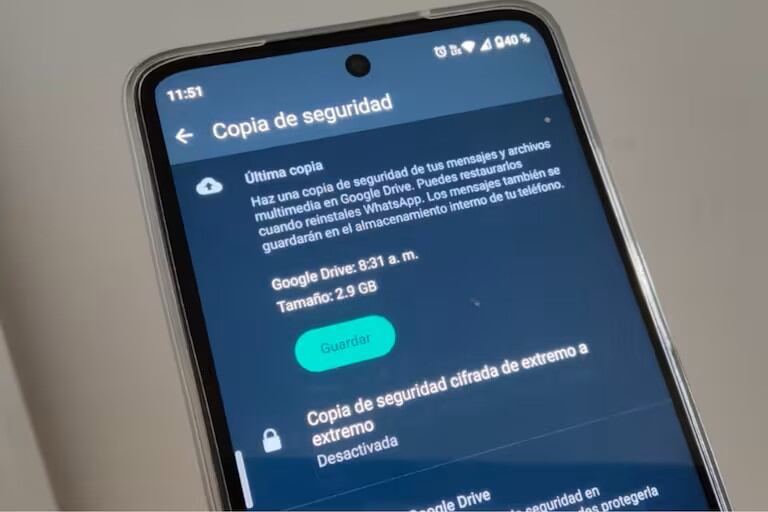
Although the platform does not store message history on its servers, it does keep automatic backup copies, which are hosted in Google Drive on Android and in iCloud on iPhone. That’s why, once files or messages are deleted, there is no trash from which they can be recoveredunless a copy prior to the time of deletion is restored.
Video tutorial to delete or empty all your chats
How to free up space without losing control of your chats?
WhatsApp allows empty content manuallywhether in individual conversations or en masse. Before applying any of these steps, it is recommended to create a backup from Settings > Chats > Backup.
Steps to empty an individual chat
- Open the tab Chats and select the conversation you want to clean.
- Tap the icon three points (Android) or menu Further (iPhone).
- Select option Empty chat.
- If you want to also delete the images, audios and videos saved in the gallery, check that box.
- Confirm by pressing Empty chat.
Steps to empty all chats at the same time
- Enter Settings > Chats > Chat history.
- Touch Empty all chats.
- Enable or disable options for delete media files from the device and the featured messages.
- End by tapping Empty chats.
This procedure deletes the content, but keeps groups and conversations visible on the main screen. If a backup was not created before, messages cannot be recovered.
How to delete content and free up space
To delete files from the app:
- Enter Manage storage.
- Select the desired chat.
- Long-press on a file and select more if you want to delete them as a group.
- Tap the delete icon.
- Check the option Delete all copies to effectively free up space.
You can also delete content using the search bar. Enter the chat list, type a term and select photos, videos or documents. From there you can delete individual items.
Other ways to save space
The option Manage storageavailable in WhatsApp settings, allows you to identify large files, forwarded many times or stored in several chats. From that section you can delete unnecessary elements without deleting important messages.
WhatsApp does not have a trash can as such. However, it allows safely delete files and recover space using the tools it already includes. Applying these steps regularly avoids saturating the cell phone’s memory and improves the overall performance of the device.
*The creation of this content was assisted by artificial intelligence. The source of this information is from Grupo de Diarios América (GDA) media and reviewed by an editor to ensure its accuracy. The content was not generated automatically.

